> For the complete documentation index, see [llms.txt](https://docs.vdo.ninja/llms.txt). Markdown versions of documentation pages are available by appending `.md` to page URLs; this page is available as [Markdown](https://docs.vdo.ninja/guides/signalwire-sip-call-in-setup.md).
# SignalWire SIP call-in setup
Set up SignalWire SIP-over-WSS for the experimental VDO.Ninja phone call-in panel.
SignalWire is currently the most direct bring-your-own provider option for VDO.Ninja's browser-side SIP call-in panel. It supports SIP over secure WebSockets, which lets the browser register as a SIP endpoint without running your own PBX.
Last reviewed: July 12, 2026.
SIP routing, privacy, and saved-credential guidance updated September 8, 2026. The privacy and credential fixes described below require a build containing that update; older deployments may behave differently.
{% hint style="warning" %}
This is experimental. Phone callers are mixed into the director/host audio and do not yet appear as normal guest tiles with full scene controls.
{% endhint %}
## What this creates
The call path is:
1. A phone caller dials your SignalWire number.
2. SignalWire routes the call to a SIP endpoint in your SignalWire Space.
3. The VDO.Ninja director page registers to that SIP endpoint over `wss://`.
4. VDO.Ninja answers the call in the browser.
5. VDO.Ninja mixes the caller into the room and sends a mix-minus return feed back to the caller.
The SignalWire mode is the generic SIP-over-WSS panel with SignalWire-specific defaults and wording.
## Cost notes
Check SignalWire's current pricing before buying numbers. At the time this guide was written, SignalWire's public voice pricing listed local numbers at a low monthly cost and usage priced per minute for PSTN, SIP, and WebRTC legs. Prices and country availability can change.
Useful references:
* [SignalWire voice pricing](https://signalwire.com/pricing/voice)
* [SignalWire SIP-over-WebSockets overview](https://signalwire.com/blogs/product/webrtc-using-sip-over-websockets)
* [SignalWire SIP trunking guide](https://signalwire.com/docs/platform/voice/sip/trunking)
## 1. Create a SignalWire Space
Create or open a SignalWire account, then create a Space. Your Space has a SIP domain similar to:
```
your-space.sip.signalwire.com
```
The exact Space name and SIP domain are shown in the SignalWire dashboard.
This direct setup does not require FreePBX. SignalWire supplies the phone number, routing, and browser-compatible SIP endpoint. A PBX is optional if you want local extensions, queues, voicemail, or different billing/routing control.
### Already have a SIP server or AoIP system?
You can use your existing server without SignalWire or a public phone number. Open `https://vdo.ninja/alpha/?director=YourRoomName&callin=sip`, register a dedicated browser-compatible extension, and route incoming SIP calls to that extension. Your hardware codec or Linphone client calls through the PBX as usual.
The browser endpoint needs SIP over **WSS** and **WebRTC media**, not just ordinary SIP over UDP/TCP with RTP. A PBX or gateway must bridge those transports and, when necessary, transcode the audio. Check the negotiated codec on both legs before assuming your AoIP codec or audio quality will carry through unchanged. For an Asterisk configuration example, see [Configuring Asterisk for WebRTC clients](https://docs.asterisk.org/Configuration/WebRTC/Configuring-Asterisk-for-WebRTC-Clients/).
The panel handles one active call per browser instance. Keep the bridge page open and connected. Calls are audio-only and are mixed into that instance's outgoing audio; they do not become separate room participants.
## 2. Create a SIP endpoint
In the SignalWire dashboard, create a SIP credential or SIP endpoint for VDO.Ninja.
Use a dedicated credential for this purpose:
| Field | Example |
| ---------- | ------------------------------- |
| Username | `vdo-callin` |
| Password | Use a strong generated password |
| Caller ID | Your show name or phone number |
| Encryption | Required, if offered |
Do not use your SignalWire project API token as the SIP password. The browser only needs the scoped SIP endpoint credential.
**Using FreePBX:** If VDO.Ninja connects to FreePBX instead of directly to SignalWire, use a dedicated WebRTC-enabled PJSIP extension. An ordinary SIP extension can work in MicroSIP while still failing in Chrome or Edge.
## 3. Buy or route a phone number
Buy a voice-capable number in SignalWire, or use an existing number that can route into SignalWire.
Route inbound calls from that number to the SIP endpoint you created. The exact dashboard wording can change, but the goal is:
```
Inbound phone number -> SIP endpoint vdo-callin@your-space.sip.signalwire.com
```
If you are using a SignalWire XML/SWML/Call Flow style route, the route should dial the SIP endpoint. For example, a compatibility XML style route would be conceptually:
```xml
sip:vdo-callin@your-space.sip.signalwire.com
```
Use the current SignalWire dashboard/docs for the exact routing UI.
### Optional path through FreePBX
The alternate route is:
```
SignalWire number -> FreePBX SIP trunk -> WebRTC PJSIP extension -> VDO.Ninja
```
The VDO.Ninja extension must offer browser-compatible secure media. In FreePBX, enable the equivalent of:
* Media Encryption: **DTLS-SRTP**
* ICE Support: **Yes**
* AVPF: **Yes**
* RTCP Mux: **Yes**
* DTLS Setup: **Act/Pass**
* DTLS Verify: **Fingerprint**
The exact labels depend on the FreePBX/Asterisk version. A successful SIP-over-WSS registration only proves that signaling works. The call can still fail at Answer if the PBX's SDP offer does not include a DTLS fingerprint for secure browser audio.
## 4. Start VDO.Ninja
Open the director page with the experimental call-in panel:
```
https://vdo.ninja/alpha/?director=YourRoomName&callin=signalwire
```
If the deployed version does not yet include the SignalWire label, use the generic SIP mode instead:
```
https://vdo.ninja/alpha/?director=YourRoomName&callin=sip
```
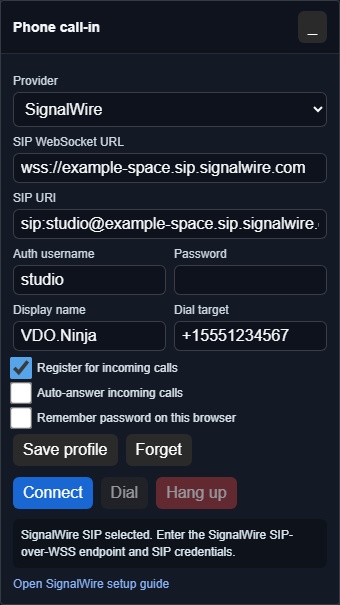
In the panel, enter:
| VDO.Ninja field | SignalWire value |
| ----------------- | ----------------------------------------------- |
| SIP WebSocket URL | `wss://your-space.sip.signalwire.com` |
| SIP URI | `sip:vdo-callin@your-space.sip.signalwire.com` |
| Auth username | The SIP endpoint username, such as `vdo-callin` |
| Password | The SIP endpoint password |
| Display name | Optional label, such as `VDO.Ninja` |
Leave **Register for incoming calls** enabled. Enable **Auto-answer incoming calls** only after testing.
Click **Connect**. The status should show that the SIP account registered.
### Field meanings
The **SIP WebSocket URL** is the secure WebSocket endpoint the browser connects to. It starts with `wss://`. It is not the same thing as the SIP address.
The **SIP URI** is the callable SIP address for the endpoint, usually formatted like `sip:username@your-space.sip.signalwire.com`.
The **Auth username** is the SIP credential username. In many setups it matches the `username` part of the SIP URI, but some providers let these differ.
The **Password** is the SIP endpoint password only. Do not enter a SignalWire project token or account-level API token here.
The **Dial target** is used only for outbound calls from the VDO.Ninja panel. For SignalWire, a normal phone number such as `+15551234567` is converted to a SIP target on the same domain.
## 5. Test before going live
1. Join the VDO.Ninja room as director/host.
2. Join as a normal guest from another browser or device.
3. Start the SignalWire call-in panel and confirm it registers.
4. Call the SignalWire number from a regular phone.
5. Answer the incoming call in the panel.
6. Confirm the VDO.Ninja guest hears the phone caller.
7. Confirm the phone caller hears the host and VDO.Ninja guest.
8. Confirm the phone caller does not hear a delayed copy of themselves.
9. Answer while the host microphone is muted, then unmute. Confirm the caller hears the host again and still hears room guests while the host is muted.
10. Start Solo Talk with a room guest. Confirm the caller's return feed becomes silent, then resumes after Solo Talk ends.
11. Test PBX hold/resume, hangup, a second incoming call while busy, and a network interruption using your actual server and codecs. Browser regression tests do not establish compatibility with every PBX.
### Microphone mute and private conversations
Muting the host microphone silences the host, while the caller remains audible to the room and continues to receive other room audio. Muting local speakers only silences the operator's monitoring.
During Solo Talk, the entire return feed to the caller is paused so neither the host nor the selected guest's private conversation is sent to the caller. On a guest page running the bridge, private-chat isolation pauses the same feed. The panel shows a paused status and restores the feed when isolation ends. The caller's incoming audio stays on air; hang up if you need to remove the caller from the room.
## Useful parameters
### Incoming ringtone
Use the bell button in the call-in panel to choose the classic ring, bell, chime, a custom uploaded audio file, or silent mode. You can preview the selection and adjust its volume. These preferences stay in the current browser. The ringtone is local operator audio and is not mixed into the VDO.Ninja room or sent back to the caller. Auto-answered calls do not ring.
The upload button opens `fileuploads.vdo.ninja`. Sign in there and upload a short audio file. The file is hosted as public media; VDO.Ninja stores only the returned HTTPS URL and selection in this browser. The ringtone menu does not store the audio file itself.
When `&callinoutput=DeviceName` or `&sipoutput=DeviceName` is supported by the browser, the ringtone follows the same local output device as the caller monitor.
| Parameter | Purpose |
| ------------------------------------------------------ | ------------------------------------------------------------------------------------------------------------------------------------------------------------ |
| `&callin=signalwire` | Opens the call-in panel in SignalWire/SIP mode. |
| `&callin=sip` | Opens the generic SIP/PBX panel. |
| `&sipwss=wss://your-space.sip.signalwire.com` | Pre-fills the SIP WebSocket URL. |
| `&sipuri=sip:vdo-callin@your-space.sip.signalwire.com` | Pre-fills the SIP URI. |
| `&sipuser=vdo-callin` | Pre-fills the auth username. |
| `&siptarget=+15551234567` | Pre-fills the outbound dial target. |
| `&callinoutput=DeviceName` or `&sipoutput=DeviceName` | Routes the local caller monitor to a named output device when the browser supports it. |
| `&sipauto=1` | Connects automatically when the page loads. |
| `&sipautodial=1` | Dials the configured target after connecting/registering; combine with `&sipauto=1` for unattended startup. Provider outbound routing must allow the target. |
| `&sipautoanswer=1` | Answers incoming calls automatically. |
Do not put the SIP password in the URL.
The panel can optionally remember the SIP profile in this browser. If you enable **Remember password on this browser**, the password is saved in this browser's local storage. That is a convenience feature for a trusted production machine, not a secure vault. Do not use it on shared computers.
The remembered password is reused only when the WSS endpoint, SIP URI, and auth username match the saved profile. Changing any of these through URL parameters or the panel clears the autofilled password for this page. Enter the appropriate password again before connecting, then save the updated profile if desired. The stored original profile is unchanged until you save or forget it. Automatic connection continues to work for an unchanged saved identity.
## Troubleshooting
| Symptom | Likely cause |
| --------------------------------------------------------------------- | --------------------------------------------------------------------------------------------------------------------------------------------------------------------------------------------------- |
| SIP registration fails | Wrong WSS URL, SIP URI, username, password, or SignalWire endpoint settings. |
| Panel says the SIP server or account changed | A saved password was withheld because the endpoint or account changed. Verify the fields, then enter the matching password. |
| Caller cannot hear the room during Solo Talk | Expected: the return feed is paused for privacy. End Solo Talk/private isolation to restore it. |
| Browser says the WebSocket URL is invalid | The URL must start with `wss://`, not `sip:`, `http:`, or `ws:`. |
| Phone call never reaches VDO.Ninja | The SignalWire number is not routed to the SIP endpoint, or the VDO.Ninja page is not registered. |
| Chrome reports `ERR_CERT_AUTHORITY_INVALID` for the PBX WSS URL | Install a trusted certificate, or visit the PBX HTTPS/WSS host and explicitly trust its local certificate before connecting. This only fixes SIP signaling, not media encryption. |
| VDO.Ninja rings, but Answer immediately sends the caller to voicemail | Check the JsSIP log for `488 Not Acceptable Here` and `SDP without DTLS fingerprint`. Configure the FreePBX extension for WebRTC with DTLS-SRTP, ICE, AVPF, RTCP mux, and fingerprint verification. |
| MicroSIP works but VDO.Ninja does not | MicroSIP can accept conventional SIP/RTP. Chrome and Edge require a WebRTC-compatible secure-media SDP offer, so use a WebRTC PJSIP extension for VDO.Ninja. |
| Caller connects but no one hears them | Check browser microphone permissions, the VDO.Ninja outbound mix, and whether the caller audio track attached in the panel. |
| Caller hears echo | The return mix includes the phone caller audio. Hang up and check the routing before going live. |
When testing is done, release unused numbers or disable routing if you do not want ongoing charges.
---
# Agent Instructions
This documentation is published with GitBook. GitBook is the documentation platform designed so that both humans and AI agents can read, navigate, and reason over technical content effectively. Learn more at gitbook.com.
## Querying This Documentation
If you need additional information that is not directly available in this page, you can query the documentation by asking a question.
Perform an HTTP GET request on the following URL with the `ask` and `goal` query parameters:
```
GET https://docs.vdo.ninja/guides/signalwire-sip-call-in-setup.md?ask=&goal=
```
`ask` is the immediate question: it should be specific, self-contained, and written in natural language.
`goal` is what the user is ultimately trying to achieve, the reason they need the answer. Sharing it helps GitBook give you a better, more relevant answer. A goal is most helpful when it describes the outcome the user wants rather than restating the question. For example, with `ask=how do I create an API token`, a goal like `automate deployments from our CI pipeline` lets GitBook tailor the answer to that use case.
The response will contain a direct answer to the question and relevant excerpts and sources from the documentation.
Use this mechanism when the answer is not explicitly present in the current page, you need clarification or additional context, or you want to retrieve related documentation sections.