For the complete documentation index, see llms.txt. This page is also available as Markdown.

Stable mobile guest production with OBS and Electron Capture

Build a stable multi-guest production with phones, OBS, Electron Capture, broadcast mode, a program return, and optional Meshcast distribution.

This guide is for a production that has several remote phone guests, one isolated source for each guest in OBS, and an OBS Program video sent back to the guests.

The recommended starting design is:

  1. Each guest publishes one camera and microphone with a unique Push ID.

  2. Each guest uses &broadcast, so the phone receives only the director's video instead of every guest's video.

  3. The director publishes an OBS Virtual Camera return.

  4. OBS or Electron Capture opens one fixed View link for each guest.

  5. Every Electron Capture window has a unique title.

  6. Conversation audio uses one deliberate path. Every speaker wears headphones.

This design reduces phone heat and makes the OBS sources predictable. If the director computer or its upload connection becomes overloaded, add &meshcast to the director's link.

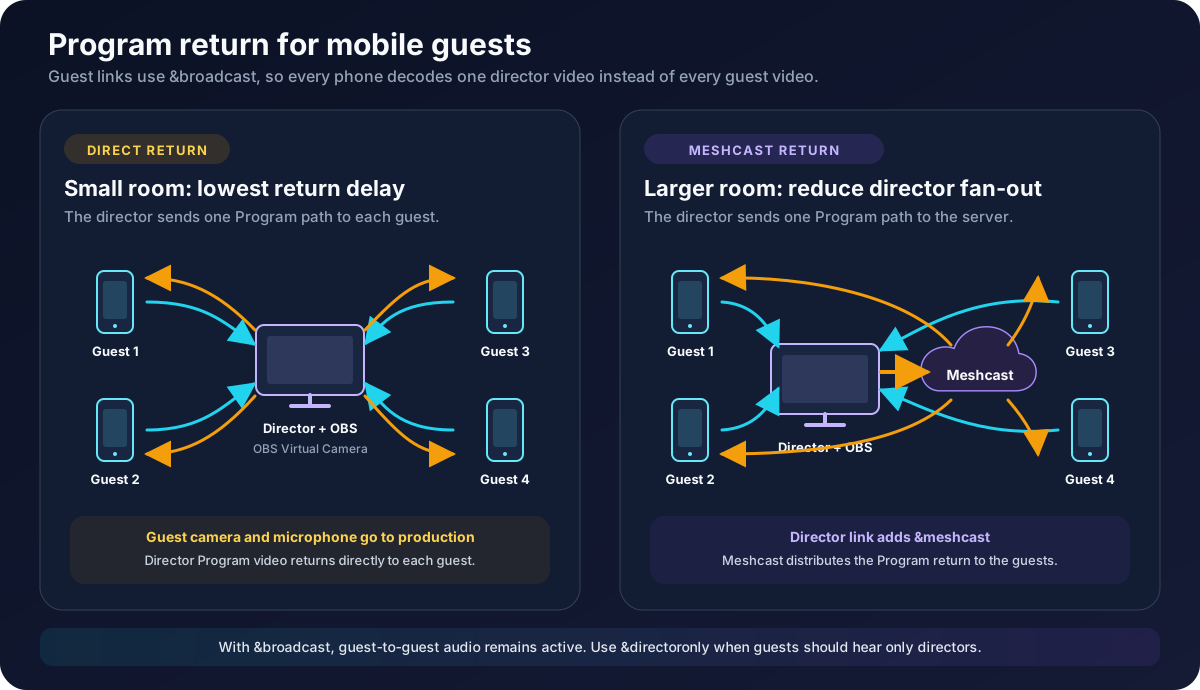
Comparison of a direct broadcast return and a broadcast return distributed through Meshcast
Broadcast mode reduces the video received by each phone. Meshcast can also reduce the number of return copies sent by the director.
Terms used in this guide

Term
Meaning

Guest link

The link opened on a remote phone or tablet

Director link

The VDO.Ninja control room opened by the producer

View link

A link that receives one guest using that guest's Stream ID

Program return

The OBS video sent back to guests so they can follow the show

Isolated feed or ISO

One guest's camera and microphone, separate from the other guests

Fan-out

One sender creating media paths for several viewers

The examples below use ROOM_NAME, CAM_01, and PROGRAM_RETURN. Replace them with your own values. Stream IDs are case-sensitive. Keep the room password and other access options identical on every room link.

Example for the first guest:

Example for the second guest:

These options have separate jobs:

  • &push=CAM_01 gives the camera a permanent Stream ID.

  • &broadcast allows only the director's video to play on the guest device. Other guests' audio remains available.

  • &quality=1 targets approximately 1280 x 720 capture.

  • &maxframerate=30 limits the requested frame rate but allows a lower fallback if the camera needs it.

Start without additional quality options if the phones are already stable. Add the 720p and 30-fps limits when a device becomes hot or cannot sustain its current settings. An emergency low-load test can use &quality=2, which targets approximately 640 x 360.

Do not give two active guests the same &push value. Do not copy a guest's address-bar URL after the guest has joined and give that modified URL to another guest.

2. Publish the OBS return from the director

Open a director link with a stable return ID:

In OBS:

  1. Create a dedicated scene for the guest return, or use Program output.

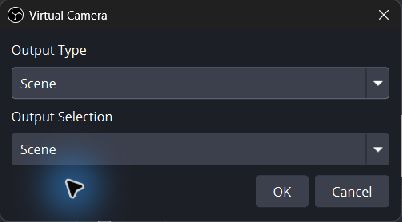
  2. Open the OBS Virtual Camera settings.

  3. Select Program, Preview, a specific scene, or a specific source.

  4. Start the OBS Virtual Camera.

  5. In the director's VDO.Ninja device settings, select OBS Virtual Camera as the camera.

OBS Virtual Camera output selection
A dedicated return scene can stay independent from changes to the public Program output.
Keep the director or PROGRAM_RETURN source out of the OBS scene that feeds the Virtual Camera. If the return captures itself, it creates a repeating picture.

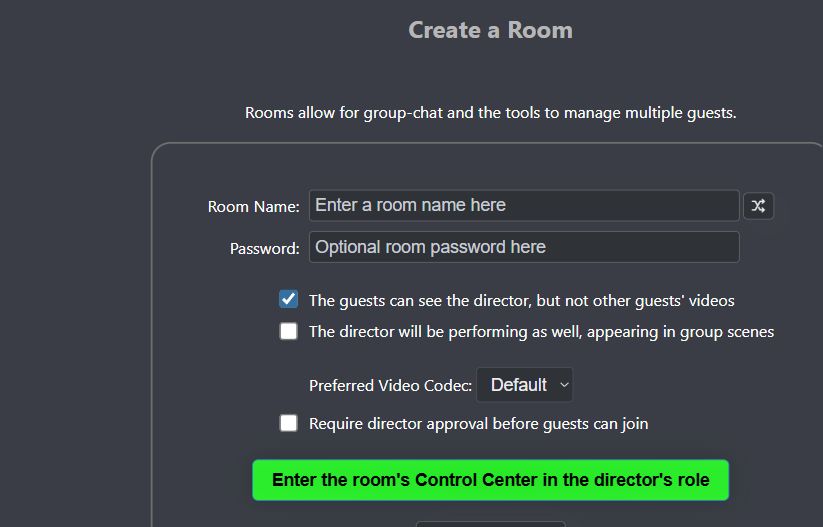
The room-creation page can add broadcast mode to the generated guest invitations:

VDO.Ninja Create a Room option that lets guests see the director but not other guests' videos
This room option adds broadcast behavior to the guest links.
The matching View links are:

The important mapping is:

Phone publisher
Production viewer
Electron Capture title
OBS source name

push=CAM_01

view=CAM_01

VDO Guest 01

Guest 01 - Electron

push=CAM_02

view=CAM_02

VDO Guest 02

Guest 02 - Electron

push=CAM_03

view=CAM_03

VDO Guest 03

Guest 03 - Electron

push=CAM_04

view=CAM_04

VDO Guest 04

Guest 04 - Electron

Use the same mapping for every rehearsal and production. A guest can reconnect with the same Push ID and return to the same production input.

Choose what each guest receives

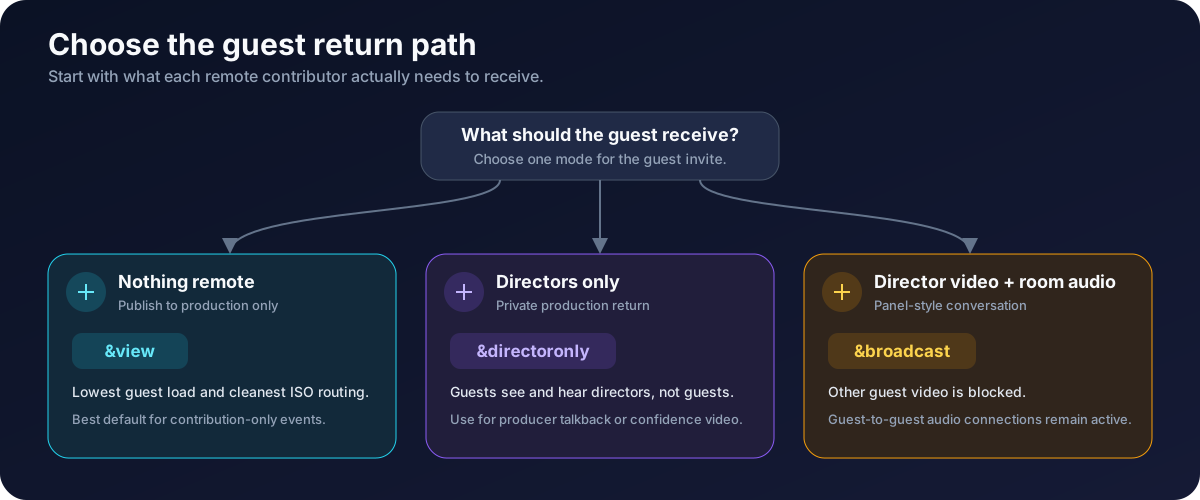
Do not make every phone display a full room unless the guests need that view. Choose the smallest return path that supports the production.

Choice between publish-only, director-only, and broadcast guest modes
The guest invite controls the return path.
Mode
Guest link option
Video received
Audio received
Main trade-off

Normal room

No special receive option

Other guests and directors

Other guests and directors

Familiar gallery, but highest phone load

Broadcast

&broadcast

Main director only

Director and other guests

Recommended for a panel with one Program return

Selected broadcast source

&broadcast=PROGRAM_RETURN

One named return source

Director and other guests

Keeps the return separate from the director

Directors only

&directoronly

Directors and co-directors

Directors and co-directors

Private producer return; guests cannot hear one another

Publish only

Bare &view with no value

Nothing remote

Nothing remote

Lowest phone load; no conversation or confidence return

Option A: Normal full room

Use this only when every guest must see every other guest. Each additional video creates more decoding, rendering, network traffic, and publisher fan-out. Older phones may heat quickly.

Option B: Broadcast mode

This is the recommended starting point for a panel that uses an OBS Program return. The phone receives one director video. Guests can still hear one another through the room.

Add &broadcast to guest links. Do not add it to the director or OBS View links.

Option C: Director-only mode

Use this when the guest should receive only the production team. It removes guest-to-guest video and audio. It is useful for private talkback, auditions, or contribution-only events where guests must not communicate directly.

Option D: Publish-only mode

The final &view has no value. The guest publishes but receives no remote media. This is the lowest-load browser setup. It is appropriate when a separate phone call, intercom, or other system provides communication.

Option E: Use a separate Program return publisher

Use this when the director needs a normal camera that is separate from the OBS return.

Open the return-publisher link on the production computer. Select OBS Virtual Camera. The &novideo&noaudio options stop that publisher page from receiving the room; they do not disable its outgoing camera and microphone.

Add Meshcast when direct distribution is too demanding

Broadcast mode moves the return-video burden to the director. Without a server, the director normally sends a separate return path to each guest.

Add &meshcast to the director link when the director's CPU or upload connection cannot sustain those copies:

The guest links still use &broadcast:

Meshcast receives the director's outbound media and distributes it to the guests. It normally reduces return-feed encoding and upload fan-out on the production computer.

If each phone camera is being requested by several production pages, the guest links can also use &meshcast:

Use &nomeshcast on a specific production View link when that viewer must request a direct peer-to-peer path from a Meshcast-enabled publisher.

Meshcast has trade-offs:

  • It normally adds some latency.

  • Media passes through a server instead of remaining entirely peer to peer.

  • Quality and availability depend on the selected server and its current load.

  • It reduces sender fan-out. It does not reduce the number of guest videos that OBS or the production computer must decode.

Add Meshcast only after the direct broadcast setup is working. Rehearse the exact server-assisted configuration before an event.

Native mobile app option

The VDO.Ninja native mobile app is another option when Safari cannot provide stable capture or when the production needs native features such as local recording, USB audio, background operation, or additional camera controls.

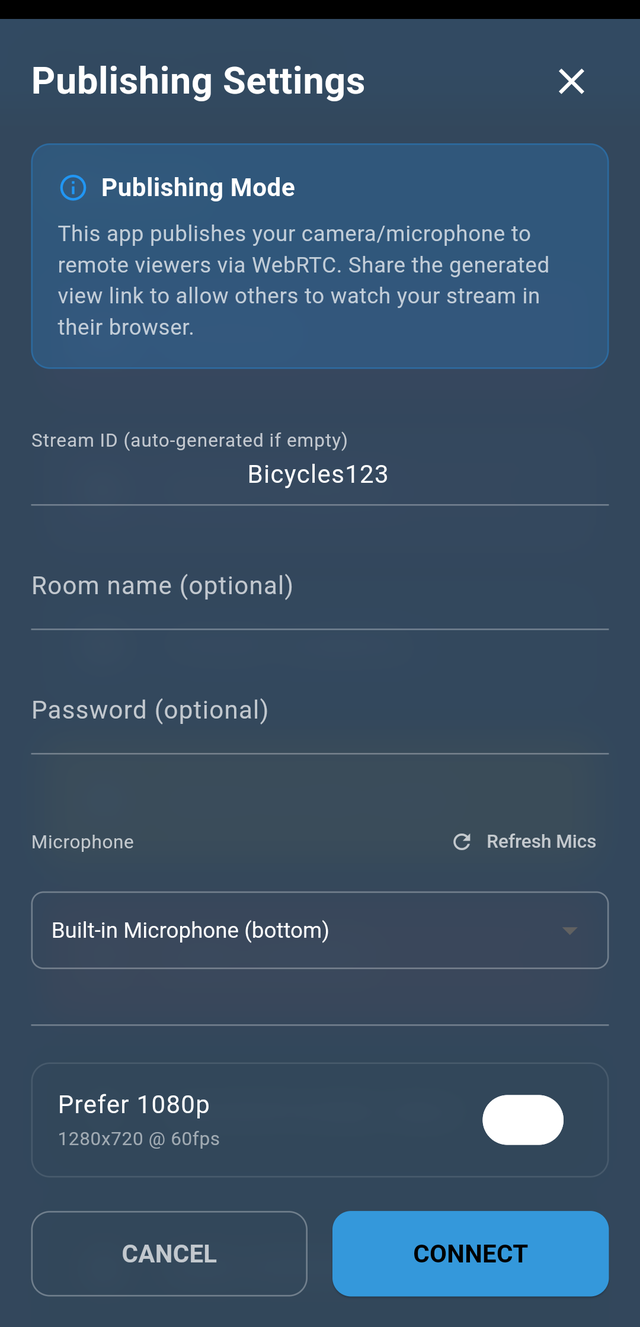
VDO.Ninja native mobile app publishing settings with Stream ID and Room name fields
Use the same stable Stream ID and Room name planned for the browser guest link.
For an isolated camera source:

  1. Enter a unique Stream ID, such as CAM_01.

  2. Enter the production Room name if the director must manage the source as a room participant.

  3. Open the matching &view=CAM_01 link in Electron Capture, OBS, or the Ninja OBS Plugin.

  4. Use the app's Remote Audio Stream or another talkback method if the camera operator needs producer audio.

The native app is focused on capture and publishing. It is not an exact replacement for the full browser room, and it may not show every guest or the complete Program return in the same way as a browser guest using &broadcast.

The simpler interface and reduced playback can lower device load, but the app does not guarantee a cooler phone. High resolution, high frame rate, local recording, screen sharing, or dual-camera capture can still create substantial heat. Test the exact app mode and phone before production.

iPhone and iPad heat, rotation, and disconnection

Video capture, video encoding, several incoming video decoders, a bright screen, Wi-Fi or cellular transmission, and battery charging all create heat. An older iPhone or iPad may lower its performance when it becomes hot. The visible result can include low frame rate, audio interruption, frozen video, or a disconnected media path.

Older iOS devices and older iOS releases have also shown sporadic orientation errors. Heat or resource pressure may make an orientation problem appear at the same time as stuttering, but a rotated picture does not prove that heat caused the failure. VDO.Ninja's orientation controls do not intentionally disconnect a guest.

Reduce heat first

  1. Use &broadcast, &directoronly, or publish-only mode instead of a full-room video gallery.

  2. Start around 720p30 with &quality=1&maxframerate=30.

  3. Use 360p as a diagnostic fallback with &quality=2.

  4. Use a current iOS or iPadOS release and a current Safari version when possible.

  5. Close unused VDO.Ninja tabs and other camera applications.

  6. Remove a thick insulating case when safe.

  7. Lower screen brightness and keep the device out of direct sunlight.

  8. Start with a charged battery. Charging an already hot phone creates more heat.

  9. Use a stable Wi-Fi or cellular signal. A weak radio connection can increase power use and packet loss.

  10. Do not request the same phone camera from unnecessary director tabs, OBS sources, Electron Capture windows, Scene links, or test devices.

If a phone still becomes hot, optionally cap each outbound video path:

A lower limit can reduce quality. Very low limits such as 600 kbps can also trigger resolution scaling. Test the result on the actual phone.

Keep an incoming video in landscape

Add &forceviewerlandscape to the link that receives the phone video. For example, add it to the Electron Capture or OBS View link:

The default rotation is 270 degrees. If that is the wrong direction, test:

This option rotates an incoming video when its reported aspect ratio becomes portrait. It does not cool the phone, repair a network connection, or prevent a publishing disconnect.

The related sender-side option is &forcelandscape:

&forcelandscape asks the phone's outgoing video to remain 16:9. &forceviewerlandscape is a receiver-side workaround. Test one change at a time so it is clear which option helped.

Configure Electron Capture so OBS does not switch guests

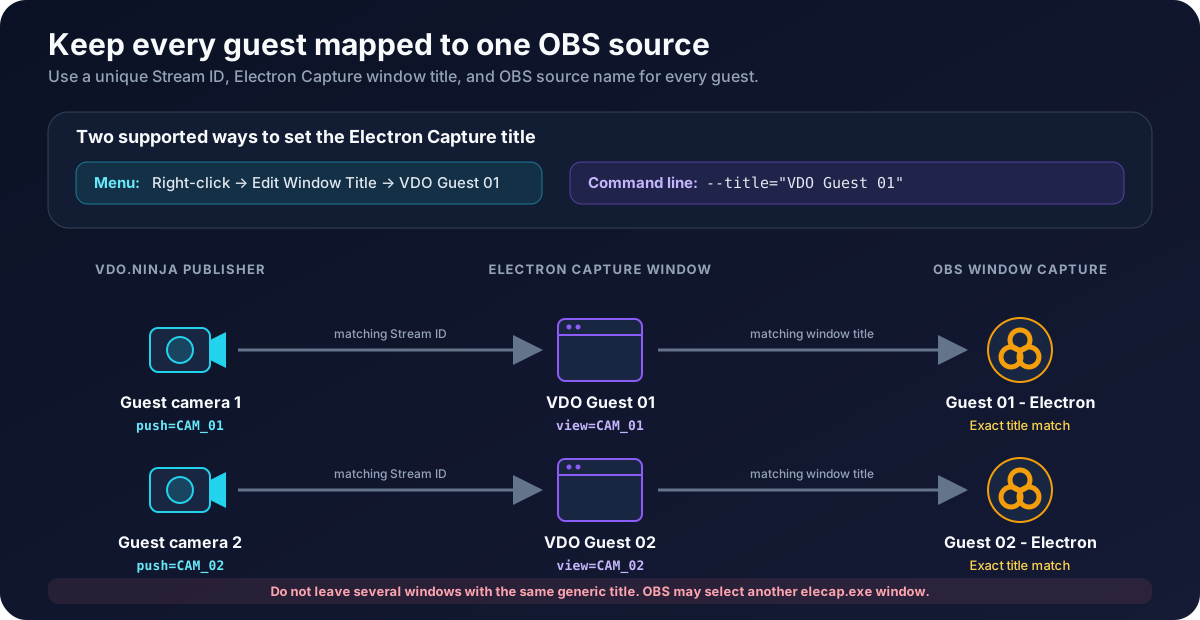
Every Electron Capture window must have a different title. If several windows have the same title, OBS may match a Window Capture source to the wrong window after a reconnect, reload, application restart, or scene change.

Stable mapping from a VDO.Ninja Stream ID to an Electron Capture window title and an OBS source
Keep the Stream ID, Electron Capture title, and OBS source name unique and consistent.

Set the title from the Electron Capture menu

  1. Open the required guest View link in Electron Capture.

  2. Right-click inside the Electron Capture window.

  3. Select Edit Window Title.

  4. Enter a unique title such as VDO Guest 01.

  5. Repeat with a different number for every guest.

  6. In OBS, select the matching window for that guest's Window Capture source.

The menu changes the current window. A command-line or batch-file launch is easier to reproduce after a restart.

Set the title from the command line

The portable Windows build is named elecap.exe. On Windows, use an equals sign and quotation marks around the URL and title:

The shorter aliases also work:

Keep the complete VDO.Ninja URL inside quotation marks. Otherwise, Windows can treat each & as a command separator.

For a repeatable multi-window setup, use a batch file and pause briefly between launches:

Use elecap.exe --help to check the options supported by the installed Electron Capture version. See the Electron Capture command-line reference for the full list.

Match each Electron Capture window in OBS

For every guest:

  1. Add one Window Capture source in OBS.

  2. Name the OBS source clearly, such as Guest 01 - Electron.

  3. Select the Electron Capture window titled VDO Guest 01.

  4. Choose the strictest title-matching option offered by the installed OBS version.

  5. Avoid a fallback that can select any window from the same elecap.exe process.

  6. Confirm the mapping before creating clones or adding the source to other scenes.

Do not rename an Electron Capture window while the production is live. A title change can break the OBS match.

Reuse sources safely across OBS scenes

If the same guest appears in several OBS scenes, reuse one tested base source:

  • Use Add Existing when adding an OBS source to another scene, or use a clone/reference tool that points to the same tested base capture.

  • Do not open another Electron Capture window or browser page for every OBS scene.

  • Confirm the base source's guest ID, window title, and audio before making clones.

  • If every clone suddenly shows the wrong guest, fix the base Window Capture mapping first.

A clone can simplify OBS scene management. It cannot reduce phone load if several separate VDO.Ninja View pages are still requesting the same phone stream.

Alternative capture methods

Capture method
Advantage
Important caution

One VDO.Ninja Scene in OBS

Fewest production inputs; simple mixed layout

Does not provide one independent source per guest

One OBS Browser Source per guest

Fixed URL; no external window-title matching

Reuse existing sources across scenes to avoid duplicate viewers

Electron Capture plus OBS Window Capture

Recent Chromium, flexible window and audio routing, survives OBS restarts

Requires unique titles and careful OBS window matching

Purpose-built OBS integration without a normal Browser Source

Install and rehearse the plugin before replacing a working setup

Changing capture methods may solve an OBS or Electron Capture problem. It will not fix a phone that has stopped publishing to every viewer.

Prevent echo and duplicated audio

&broadcast blocks other guests' video, but it does not block their audio. This is intentional so a panel can continue speaking naturally.

The simplest audio setup is:

  • Every speaker wears headphones.

  • VDO.Ninja carries the live conversation audio.

  • OBS Virtual Camera returns video only.

  • Only one OBS or Electron Capture path supplies each guest's audio to the production mix.

OBS Virtual Camera does not carry the OBS audio mix. If guests must hear music, clips, or other Program sound, use a virtual audio device and build a controlled return. Do not send the complete OBS mix, including guest microphones, back to those same guests. They will hear delayed copies of themselves.

Check these common duplicate paths:

  • The same guest audio is active in the director room and in an isolated capture.

  • A Browser Source and an Electron Capture window both receive the same guest.

  • A cloned source and its base source are both active in the same OBS mix.

  • A shared webpage and VDO.Ninja both play the Program audio.

  • OBS monitoring sends the production mix back into the same virtual audio device used as its input.

Make a private recording and listen to every audio channel before the event.

Diagnose rotation, source switching, and disconnection separately

These symptoms can occur together, but they do not always have the same cause.

Observation
Most useful next check

The correct guest remains visible in the VDO.Ninja director room, but OBS shows another guest

Check Electron Capture titles and OBS Window Capture matching

Electron Capture shows the correct guest, but OBS shows another window

Fix the OBS source mapping; do not change phone settings

The guest disappears from Electron Capture, OBS, and the director room

Check the phone, iOS version, heat, network, permissions, and WebRTC connection

Video rotates but audio and the connection remain stable

Test &forceviewerlandscape on the receiving View link

Rotation, low frame rate, audio stutter, and disconnection happen after the phone becomes hot

Reduce incoming video, capture resolution, frame rate, and unnecessary viewers

Audio stops after a call or notification on iOS

The director computer becomes overloaded only as more guests receive the Program return

Add Meshcast to the director return and retest

OBS CPU remains high after adding Meshcast

Meshcast does not remove the need to decode and render each isolated guest input

Isolation test

Change one item at a time:

  1. Test two guests with no Source Clone or duplicated OBS scenes.

  2. Add &broadcast to the guest links and confirm each phone displays only the director return.

  3. Add the third and fourth guests one at a time.

  4. Watch phone temperature, VDO.Ninja connection state, OBS CPU/GPU use, and production upload/download bandwidth.

  5. If a source changes identity, compare the VDO.Ninja director view, Electron Capture window, and OBS source at the same moment.

  6. If the director return causes production overload, add &meshcast only to the director link and repeat the test.

  7. Add Source Clone or the remaining OBS scenes only after every base input remains stable.

If a video tile is present, Ctrl + left-click it on Windows or Command + click it on macOS to open connection statistics. Record packet loss, available bitrate, candidate type, and connection state near the failure.

Rehearsal checklist

Information to collect when a problem remains

Remove passwords and private tokens before sharing logs or links.

Collect:

  • The exact guest, director, and View link options

  • Phone or tablet model

  • iOS or Android version

  • Browser or native-app version

  • Electron Capture version

  • OBS version and capture method

  • The number of active guests and duplicate viewers

  • Whether Wi-Fi or cellular data was used

  • Whether the guest remained visible in the director room after OBS lost it

  • The approximate failure time and time zone

  • A short recording showing the phone, Electron Capture, and OBS when possible

  • Connection statistics immediately before or after the failure

Search words

Multiple phone guests, iPhone overheating, iPhone video rotates, upside-down video, guest disconnects, Electron Capture title, Electron Capture switches windows, wrong guest in OBS, OBS Window Capture matching, Source Clone, Program return, broadcast mode, Meshcast, isolated guest feeds, audio feedback.

Last updated

Was this helpful?