Mesh Network Debug
Visualize and troubleshoot P2P connections between guests in a room
The Mesh Network Debug tool helps directors visualize and troubleshoot peer-to-peer (P2P) connections between guests in a room. When guests can't hear each other or connections fail, this tool provides visibility into what's happening and offers recovery options.
Accessing the Tool
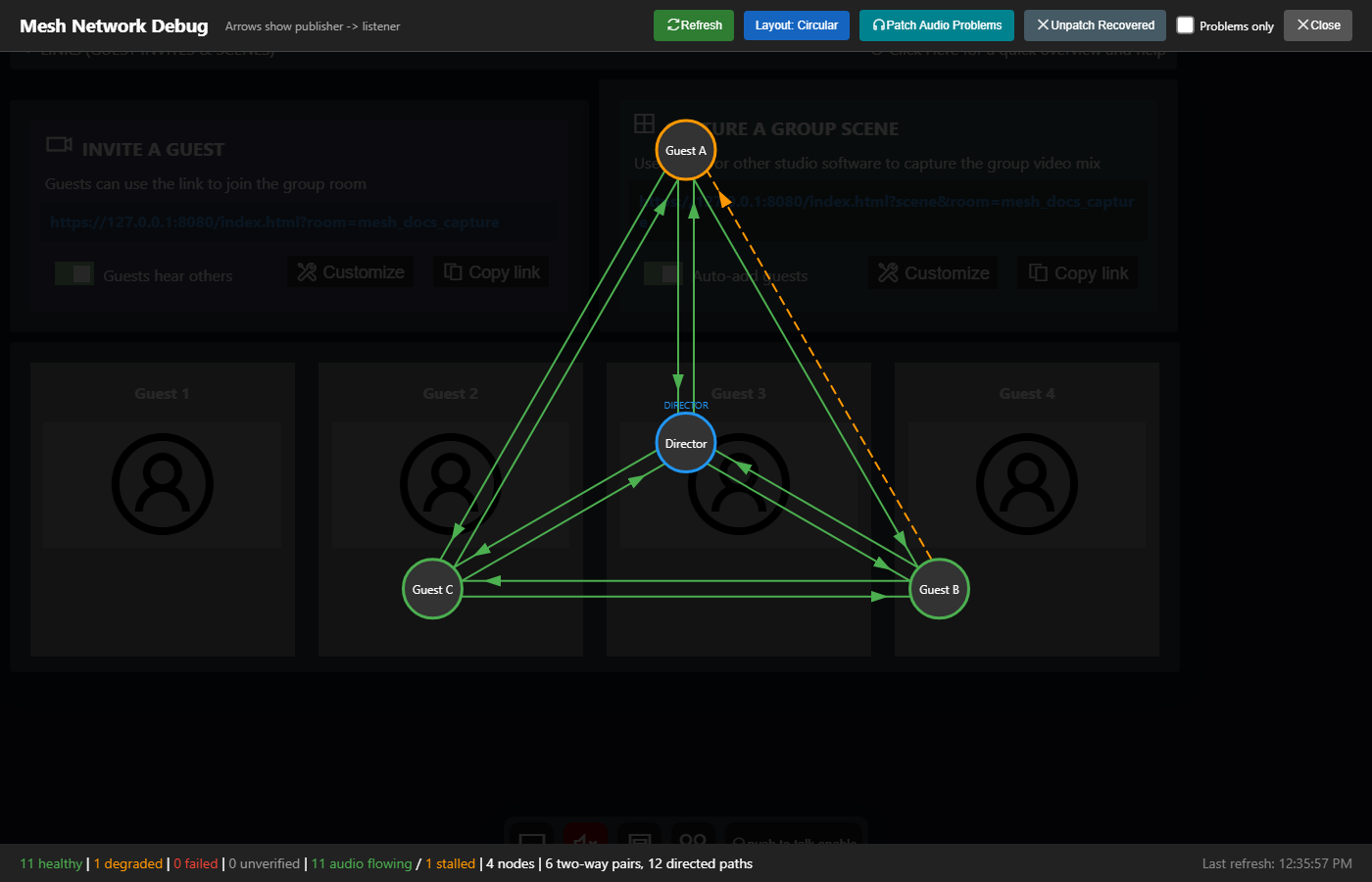
As a director, click the mesh network icon in the header bar (next to the room name). This opens a full-screen visualization showing all guests and their connections.
Understanding the Visualization
Nodes
Each circle represents a participant:
Director - shown with a special indicator
Guests - regular participants in the room
Viewers/Scenes - view-only participants
Node colors indicate health status:
Green - healthy, all connections working
Orange - degraded, some connections have issues
Red - failed, unable to connect
Gray - isolated, no connections established
Connection Lines
Lines between nodes show P2P connections:
Solid green - connected and working
Dashed orange - connecting or degraded
Dashed red - failed connection
Cyan double-dash - patched via mix-minus (audio being relayed through director)
Click on any node or connection line to see detailed information in the side panel.
Node Details Panel
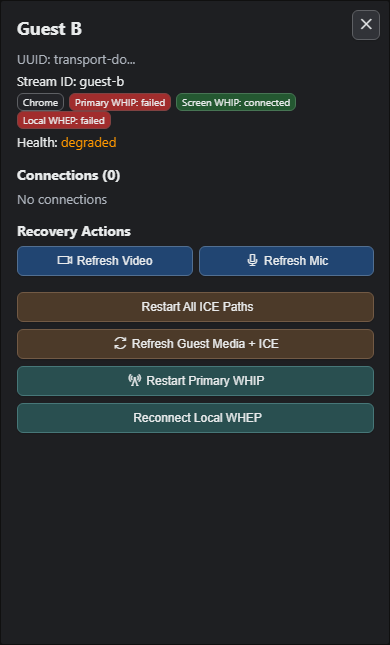
When you click a node, you'll see:
Stream ID and UUID
Browser being used (Chrome, Firefox, Safari, etc.)
TURN indicator - shows if the guest is using a TURN relay server
Health status
List of connections to other participants
Recovery Actions
For guest nodes, you have several recovery options:
Refresh Video
Reinitializes the video track - use when video is frozen or black
Refresh Mic
Reinitializes the audio track - use when audio stops working
ICE Restart
Performs an ICE restart to re-establish the connection - use for degraded connections
Refresh All
Full restart of audio, video, and ICE - nuclear option for stubborn issues
Connection Details Panel
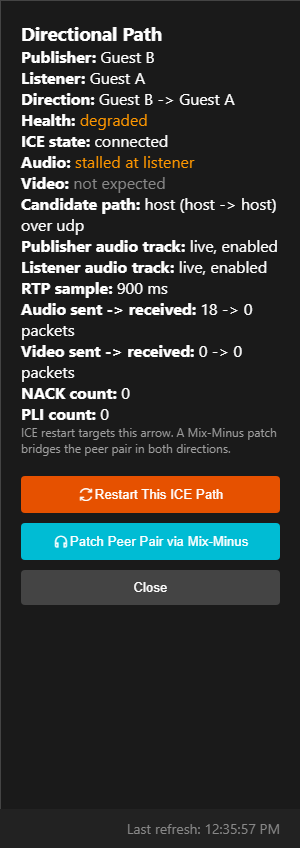
When you click a connection line, you'll see:
Source and target participants
Connection state (connected, failed, etc.)
Candidate type (host, relay, etc.)
Bandwidth being used
NACK/PLI counts - indicators of packet loss
Patching Failed Connections
When a P2P connection between two guests fails, they can't hear each other directly. The Patch via Mix-Minus feature solves this by routing their audio through the director.
How it works:
Guest A's audio goes to the director
Director mixes and sends it to Guest B
Guest B's audio goes to the director
Director mixes and sends it to Guest A
This adds a small amount of latency but restores audio communication when direct P2P fails.
To patch a failed connection:
Click on the failed (red) connection line
Click Patch via Mix-Minus button
The connection will show as cyan to indicate it's being relayed
To remove a patch:
Click the patched (cyan) connection
Click Remove Patch button
Toolbar Options
Refresh
Re-queries all guests for current connection status
Layout
Cycles between Circular, Grid, and Force-directed layouts
Auto-Patch Failed
Automatically patches all failed guest-to-guest connections
Unpatch Recovered
Removes patches for connections that have recovered to P2P
Problems only
Filters view to show only problematic connections
Common Scenarios
Guest can't hear another guest
Open Mesh Network Debug
Look for red or orange connection lines between those guests
If failed, try ICE Restart on both guests
If still failing, use Patch via Mix-Minus to relay audio through director
Multiple guests having audio issues
Click Auto-Patch Failed to patch all broken connections at once
Later, click Unpatch Recovered to restore any connections that have healed
Guest showing TURN indicator
A TURN indicator means the guest is using a relay server rather than direct P2P. This can indicate:
Restrictive firewall or corporate network
Symmetric NAT preventing direct connections
The connection may have higher latency
Consider having the guest try a different network or use &relay parameter if TURN is required.
Tips
Refresh the visualization periodically during long sessions to get current status
Patched connections add latency - unpatch when P2P recovers
The tool is most useful when guests report they can't hear specific other guests
Force-directed layout can help visualize problem clusters in larger rooms
Related
Last updated
Was this helpful?